llms.txt Generator: Scaffold Sections Before You Validate

Key takeaways
- A generator scaffolds llms.txt sections—you still pick URLs and write quotable descriptions.
- Edit the draft for facts, validate syntax, then upload at the domain root.
- Align robots rules with the URLs you list so crawlers can actually fetch them.
What does an llms.txt generator do? It builds the plain-text skeleton—H1 title, optional summary line, section headings, and markdown link rows—so you focus on which URLs belong in the index and what each page is for. You still curate the list and write descriptions models can quote. Generate the scaffold, edit for facts, validate, then ship at the domain root.
What you are generating
An llms.txt file is a curated map for AI-oriented crawlers: human-readable text at https://yoursite.com/llms.txt with links plus short descriptions. Google’s Lighthouse agentic-browsing documentation treats it as an optional hint—it does not replace HTML, sitemap.xml, or robots.txt rules.
A generator is not:
- A full sitemap export (keep sitemaps for URL discovery)
- A robots.txt editor (allow/block still lives in robots)
- A substitute for fixing weak page structure on the URLs you list
For field definitions and adoption context, see the llms.txt structured data framework. For the full what-it-is walkthrough, read the llms.txt guide—this page covers generating the file and publishing it at the root.
Step 1: Shortlist URLs worth citing
Before you open any tool, pick five to thirty URLs you want quoted in ChatGPT or Perplexity answers—not every filter page or campaign landing page.
| Signal | Include | Skip |
|---|---|---|
| Stable slug | Docs, pricing, API reference | Seasonal promo paths you retire quarterly |
| Canonical topic | One URL per product line | Duplicate intro + PDF-only unless both must cite |
| Public fetch | Returns 200 without login | Staging, account, or noindex pages |
Pull candidates from your docs nav or by comparing your shortlist to the sitemap. If GPTBot is blocked for a path in GPTBot robots.txt rules, do not list that URL until access matches intent.
Step 2: Run the generator
Open gptmelo’s llms.txt Generator. Enter your site or doc-set name for the H1, add an optional one-line summary, then create sections such as # Docs, # Products, and # Policies.
For each row, supply:
- Link text (page title models might repeat)
- Full HTTPS URL
- One-line description with a quotable fact (“SSO on Business tier”, not “industry-leading platform”)
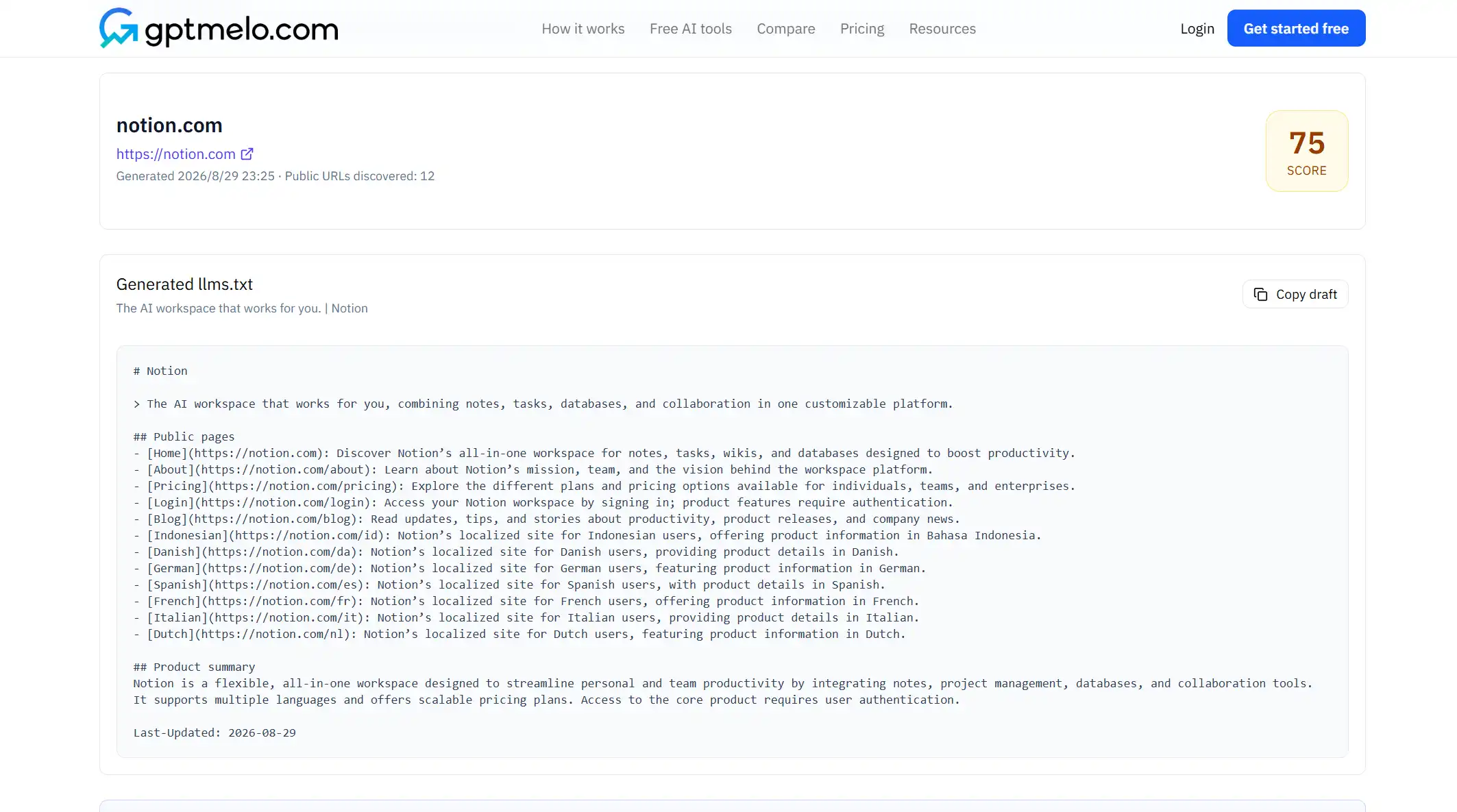
The generator writes valid Markdown-style lines like [Getting Started](https://www.example.com/docs/start) — Install and first-run setup. Copy the output when the section list matches your shortlist—you will edit before upload.
Example output after two sections (your titles and URLs will differ):
# Acme Docs Index
> Canonical docs and product pages for Acme; curated for AI crawlers.

# Docs
[Getting Started](https://www.acme.com/docs/start) — Install and first-run setup
[API Reference](https://www.acme.com/docs/api) — REST endpoints with request examples

# Products
[Pricing](https://www.acme.com/pricing) — Plans, limits, and billing FAQ
[Security](https://www.acme.com/security) — SOC 2 report and data retention summary
Keep section names stable across releases so diffs stay readable in git.
Step 3: Edit descriptions for quotable facts
Generated rows are structural starting points. Replace marketing adjectives with checkable claims:
- Weak: “Best-in-class analytics dashboard”
- Strong: “Dashboard exports CSV; Business tier adds SSO”
Remove deprecated products soon after you sunset them. Drop internal wikis and search result pages. If a URL moved during a docs migration, update the link before you validate—stale llms.txt sends crawlers to 404s.
Step 4: Validate before upload
Paste the edited draft into the llms.txt Checker. Fix broken Markdown, missing em-dash descriptions, and dead URLs. Run the checker even when you used the generator—one bad bracket can make the whole file easy to ignore.
Quick validation pass:
- Every listed URL returns
200or a stable redirect - File uses
#section headings and link lines with descriptions - robots.txt allows the AI user agents you care about (OpenAI GPTBot documentation)
Step 5: Publish at the domain root
Upload plain text so https://yoursite.com/llms.txt returns raw text in a private window—not an HTML wrapper.
| Host type | Typical path |
|---|---|
| Static (Cloudflare Pages, Netlify) | public/llms.txt in repo |
| Next.js / similar | public/llms.txt or route returning text/plain |
| WordPress / CMS | Root rewrite or CDN rule—not only /blog/llms.txt |
After deploy, re-run the checker against the live URL. Pair with a GEO site audit when leadership wants crawl access and page structure reviewed together—not as a substitute for fixing priority pages.
Subpath and multi-domain setups: If marketing lives at example.com but docs live on docs.example.com, pick one root for the main index file and link out explicitly—or maintain separate llms.txt files on each host. Do not assume generating once covers both domains unless you list full URLs for each.
Step 6: Re-validate after URL or robots changes
Treat generated llms.txt like any other published file. Re-run the checker after:
- Documentation restructures or slug changes
- Pricing tier renames or product sunsets
- robots.txt edits that touch AI user agents
Quarterly is enough for stable sites; weekly during a launch month is reasonable. Assign one owner (docs lead or SEO) to compare llms.txt against sitemap.xml when either file changes—remove sunset lines soon after you deprecate a product.
Generator vs manual vs CMS export
| Approach | Works when |
|---|---|
| Generator | First file, new docs section, or onboarding a contributor who does not know the format |
| Hand edit | Small quarterly updates to five URLs |
| CMS export | Your platform emits llms.txt automatically—still validate after theme or URL changes |
When your CMS adds auto-generation, keep a human review step. Exports often include low-value archive tags or duplicate paths.
Common mistakes
- Listing URLs blocked in robots.txt while hoping llms.txt overrides access
- Dumping hundreds of sitemap URLs instead of a curated cite list
- Publishing under
/blog/llms.txtwhen marketing lives at the apex domain - Skipping validation because “the generator looked fine”
- Leaving campaign copy in descriptions instead of facts
Free check: a draft from public pages
Open gptmelo’s llms.txt Generator. Paste the website URL so the draft can pull public pages. No account required.
1. Fill the form. Paste the site URL in the website URL field.

2. Generate. Click Generate llms.txt for free.
3. Read the result. You get a draft file to copy. The screenshot is a sample — yours follows the site URL you pasted. Glance that links are real URLs. This window is not the live /llms.txt.
4. Edit, then upload. Cut weak rows, then put the file at the domain root. Validate the live file after deploy—do not treat this draft as already published.
FAQ
What does an llms.txt generator do?
It outputs the Markdown-style skeleton—title, optional summary, section headings, and link lines—so you add URLs and one-line descriptions instead of guessing structure.
Should I use a generator or write llms.txt by hand?
Use a generator for a first file or a new docs section; hand edits are fine for small tweaks. Either way, run a checker before publish.
Where does the generated file go?
Upload to https://yoursite.com/llms.txt at the domain root, not under a blog subfolder unless that is your public root.